Quick start guide
Of course there must be an obligatory xkcd reference.
Thank you for taking the interest in tradeParrot and Welcome to automated world of trading!
Requirements
- tradeParrot licence from tradeparrot.net
- Tradingview account tradingview.com
- VPS or a PC with instance of MT4/MT5
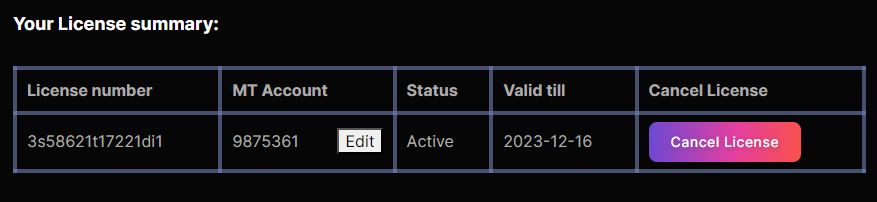
In order to get started you will need to have registered on tradeParrot and been assigned the license. The license will then need to be assigned to your own MT4/MT5 account ID, which is normally your login username:
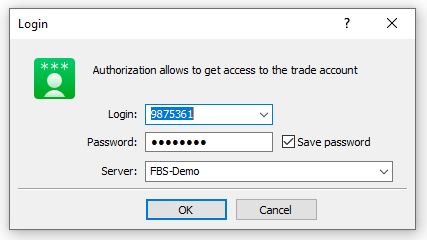
Login has to match the one assigned in tradeParrot licence:
Installing EA
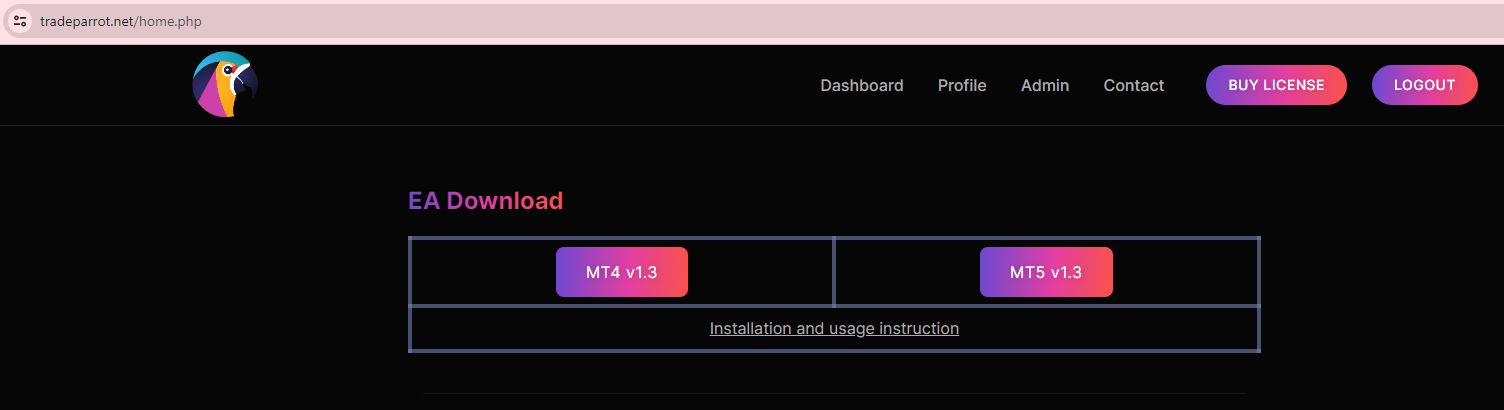
Download the latest MT4/MT5 EA from your tradeParrot:
Downloaded files (tradeParrot.ex5 or tradeParrot.ex4) copy to your VPS, or a machine that runs your MT4/MT5 instance. Open up the folder (ctrl-shift-D on MT5) and locate your EA folder (MQL5\Experts): In MT5 similar folder should look like this:
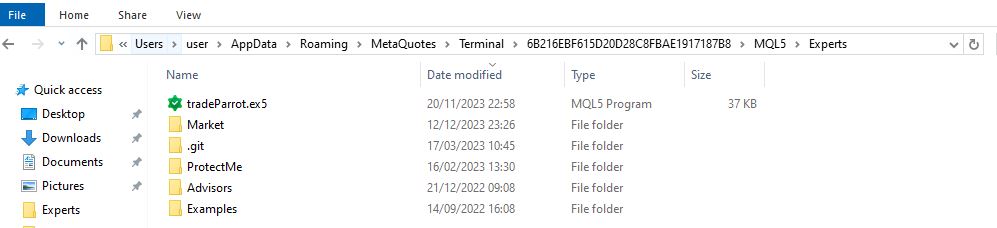
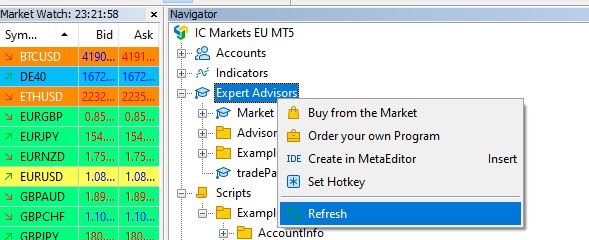
Copy downloaded EA file into Experts folder. Refresh EA's:
EA Configuration
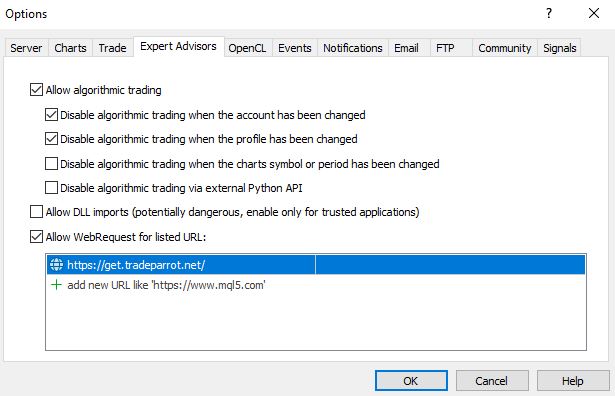
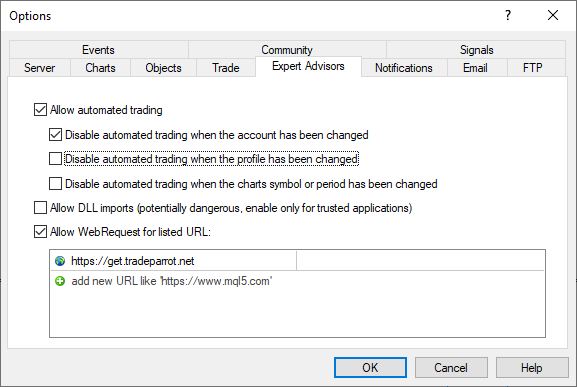
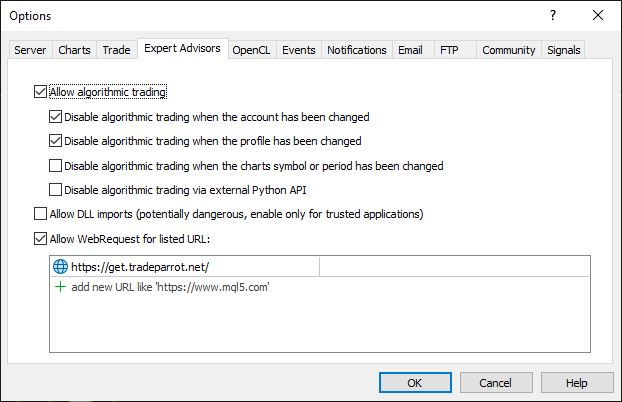
In tools->options on Expert Advisors tab tick Allow algorithimc trading, and Allow WebRequest for listed URL:
https://get.tradeparrot.net/
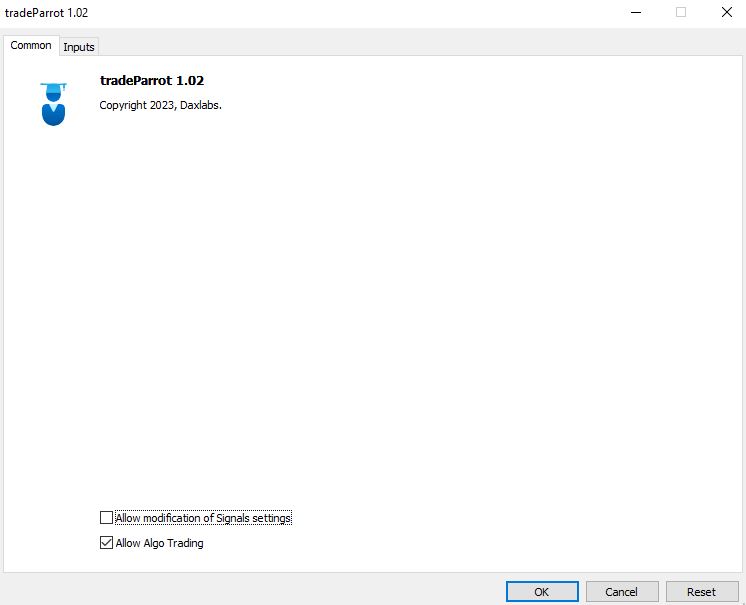
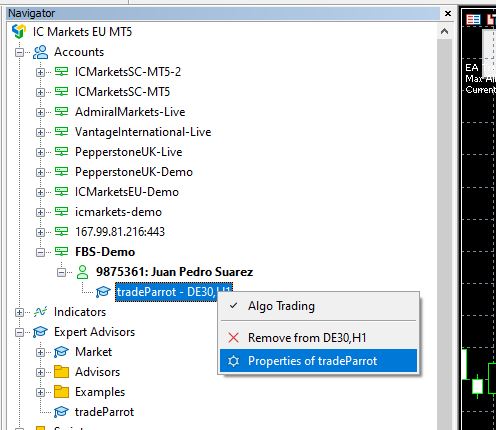
Double click on tradeParrot EA or Properties:
MT5 Settings
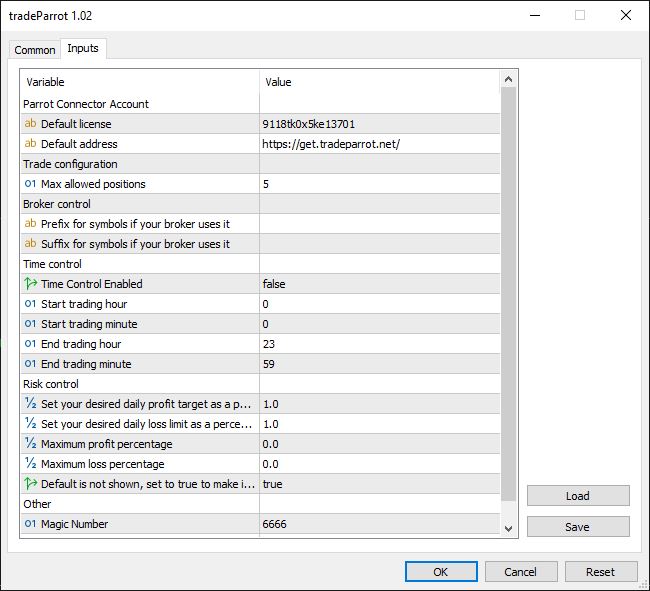
- magic_number - Is the possibility of two or more Expert Advisors to work on a single instrument and not interfere. "6666" will identify instance of tradeParrot and functionalities will apply to trades with that magic number.
- tester - this is solely for the purpose of built in MT5 tester, default is FALSE. In 'True' state EA does not communicate with outside world.
- Max allowed positions - self explanatory
- Take Profit Money - EA will close all positions at specified money value. Default 0 means its disabled.
- Stop Loss Money - EA will close all positions at specified money value. Default 0 means its disabled.
- Licence - this should be the licence assigned in by tradeParrot and registered with matching MT5 login account.
- address - outbound address of tradeParrot queue server: https://get.tradeparrot.net/
- debugger - default false, true will output more information to help with troubleshooting
- Use time control: default false, when true EA will only accept new trades within specific time constraints, will work between "Start Hour, Start Minute" and "End Hour, End Minute".
- Set your desired daily profit target - when reaches desired target EA will stop and will be in 'Halt mode' until manually resumed. Percentage of equity is used.
- Set your desired daily loss limit - when reaches desired target EA will stop and will be in 'Halt mode' until manually resumed. Percentage of equity is used.
- Prefix for symbols - some brokers use prefixes, setting this to "FX_" would add FX_ in front of GBPUSD making it "FX_GBPUSD"
- Suffix for symbols - similar fashion as prefix, setting this to "_FX" would add _FX at the and of GBPUSD making it "GBPUSD_SB"
MT4 Settings
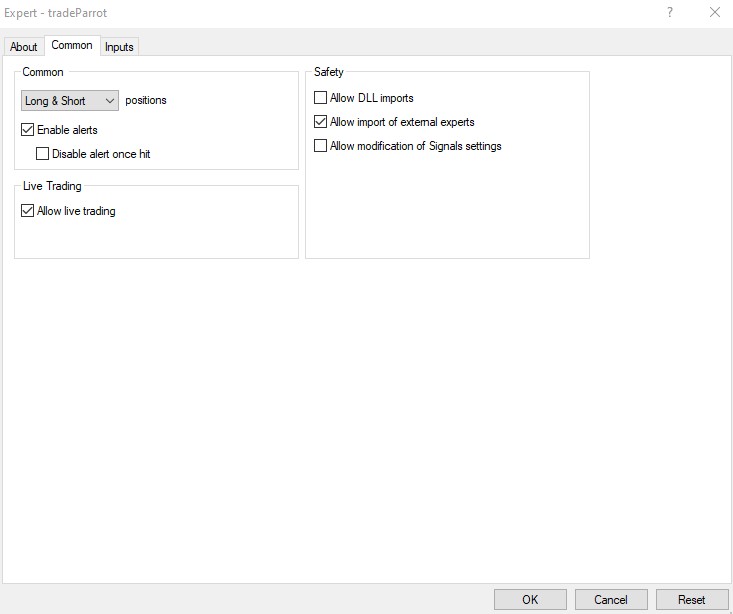
Allow live trading in EA 'Common' settings:
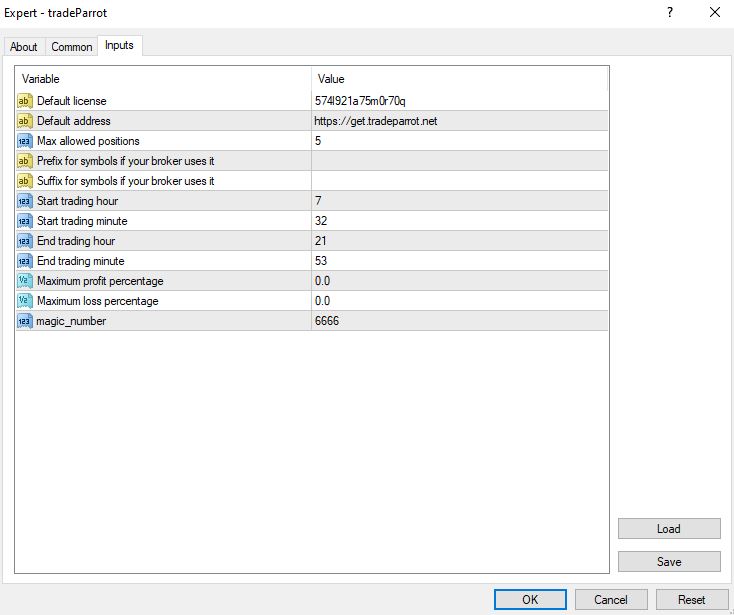
- Default Licence - this should be the licence assigned in by tradeParrot and registered with matching MT4 login account.
- address - outbound address of tradeParrot queue server: https://get.tradeparrot.net/
- Set your desired daily profit target - when reaches desired target EA will stop and will be in 'Halt mode' until manually resumed. Percentage of equity is used.
- Set your desired daily loss limit - when reaches desired target EA will stop and will be in 'Halt mode' until manually resumed. Percentage of equity is used.
- Prefix for symbols - some brokers use prefixes, setting this to "FX_" would add FX_ in front of GBPUSD making it "FX_GBPUSD"
- Suffix for symbols - similar fashion as prefix, setting this to "_FX" would add _FX at the and of GBPUSD making it "GBPUSD_SB"
- Use time control: default false, when true EA will only accept new trades within specific time constraints, will work between "Start Hour, Start Minute" and "End Hour, End Minute".
- magic_number - Is the possibility of two or more Expert Advisors to work on a single instrument and not interfere. "6666" will identify instance of tradeParrot and functionalities will apply to trades with that magic number.
Tradingview configuration
To make the connector work as bear minimum you need to set your alert in Tradingview to post to your MT4/MT5 EA.
You need a tradeParrot licence and fill in your desired conditions for the alert.
Go to top right hand corner of tradingview and look for create alert. (alt-A shortcut)
Choose condition, trigger, and pick the name.
As example below we triggering price crossing 1.07680 on EURUSD:
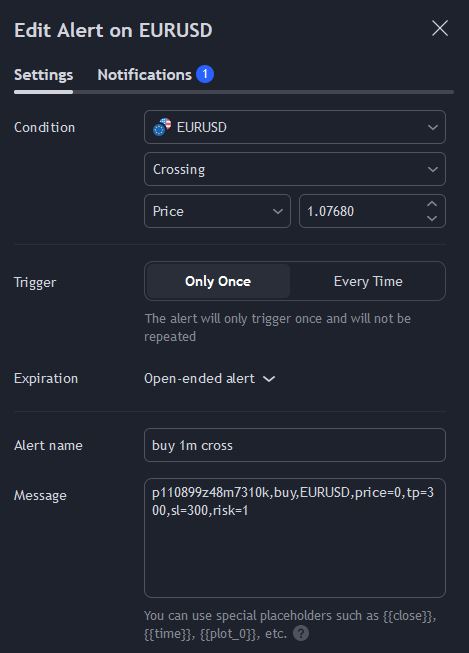
"Message" field has got the details of what your MT4/MT5 EA will receive,
in this format:
"licence, ordertype, ticker, price, tp, sl, risk"
licence - found in tradeParrot dashboard
ordertype - buy or sell
ticker - refers to the symbol
tp - take profit in pips
sl - stop loss in pips
risk - size of the position (lots)
On the "notifications" side webhook URL set to:
https://post.tradeparrot.net
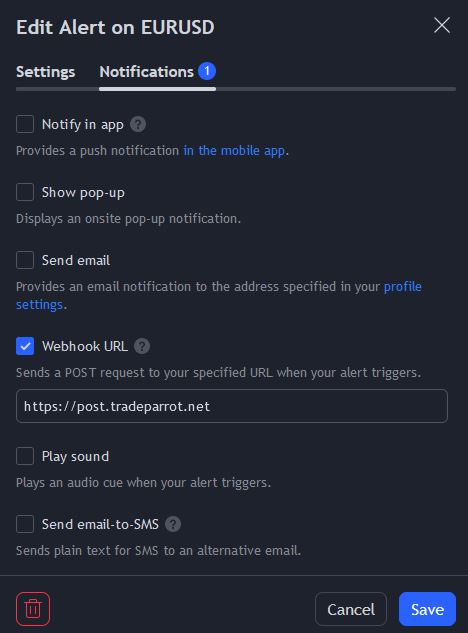
Once saved, the alert when triggered, will send buy order to your metatrader thats assigned to your licence.
Troubleshooting
The most common error in mt5 is not adding the URL to allowed list in expert advisor:
(in MT5 error code: 4014)

Please add it via tools->options->expert advisors-> Allow web request for
Similar error on MT4: (error code: 4060)
 Make sure the address is in whitelist in
tools->options->expert advisors-> Allow web request for
https://get.tradeparrot.net
VPS

As of the current moment, we are pleased to report that our tradeParrot connector exhibits seamless compatibility with a wide range of operating systems. We take pride in affirming that no issues have been encountered across various operating systems, reaffirming our commitment to providing a versatile and accessible solution for our users.
The tradeParrot connector seamlessly integrates with both MT4 and MT5 instances, ensuring a smooth and efficient experience for users regardless of their preferred MetaTrader platform. This flexibility is designed to accommodate the diverse needs of our user base, offering compatibility and performance across different trading environments.
It is important to note that the successful operation of the tradeParrot connector is contingent upon having at least one MetaTrader instance running. Additionally, we would like to assure users that there have been no reported issues related to any specific operating system, underlining the reliability and universality of our connector.
However, it is crucial to consider the presence of firewalls on the operating system running the MetaTrader platform. To ensure optimal functionality, users are advised to verify that there are no firewall restrictions that might impede the connector's operation. This proactive approach will contribute to a seamless and uninterrupted trading experience.
We want to emphasize that, at present, there are no known issues associated with any particular operating system platform. Our development and quality assurance teams are dedicated to ongoing monitoring and testing to maintain this high standard of performance across diverse environments.
In the event that users encounter any challenges or have inquiries regarding the setup of a Virtual Private Server (VPS), we recommend reaching out to your VPS provider as a first instance of contact. Addressing any potential issues at the VPS level ensures a solid foundation for the successful operation of the tradeParrot connector, contributing to a hassle-free and reliable trading experience.
Should you have any further questions or encounter any difficulties, our support team is readily available to provide assistance and guidance, ensuring that you can make the most of your trading experience with the tradeParrot connector. We remain committed to delivering a robust and user-friendly solution for all our clients.
We recommend decent VPS at good price with Ionos